
Microsoft Copilot connects to MCP servers, and asks before it writes
Microsoft 365 Copilot reaches an MCP server through a connector an admin adds once, with an OAuth client registered beforehand, because the connector won't register itself. Once connected, Copilot asks before it writes, and on our server it went by each tool's read-only hint.
Connect Clawnify
An admin adds the server once, then each person connects
In Microsoft 365 Copilot, an MCP server goes in as a custom connector. A Microsoft 365 admin creates it once in the admin center, under Copilot, Connectors, and each person then connects it from Copilot's settings with their own sign-in. Microsoft calls this kind federated. Copilot asks the server live, each time someone asks a question, and copies nothing into Microsoft 365. The other kind of Copilot connector, a synced one, indexes its source into Microsoft Graph ahead of time.
We set one up on 2 November 2026, against the MCP server that serves a Clawnify workspace: its apps, its Company Knowledge, its task board and its agents. Before you start, you need four things.
- A Microsoft 365 Copilot licence for every person who uses it. Microsoft lists it among the conditions for seeing a federated connector at all, so people on the free Copilot Chat can't use one. To test, we started Microsoft's Copilot Business trial: 25 licences, free for a month. Check its renewal before you place the order. Ours was set by default to turn into a paid one-year subscription, and we changed it to one month.
- An admin with the Global Administrator or AI Administrator role, once, for the steps in the admin center.
- Access to the Teams Developer Portal, where the sign-in is registered.
- The server's address, and an OAuth client for it: a client ID and secret issued by whoever runs the server. The next section explains why this has to exist before anything else.
| # | What you do | Where | Watch for |
|---|---|---|---|
| 1 | Get a client ID and secret | Whoever runs the server | Allow Microsoft's redirect address |
| 2 | Register the client, copy the registration ID | Teams Developer Portal, Tools | Choose Any Teams app, or Save stays grey |
| 3 | Add a connector of the type Connect to MCP server | Admin center, Copilot, Connectors | Not Sync from data source |
| 4 | Name it, describe it, paste the server's address | The connector form | Copilot reads the description |
| 5 | Choose OAuth 2.0, paste the registration ID, press Authorize | The connector form | The admin signs in to the server once |
| 6 | Accept the notice and create it | The connector form | Up to 10 minutes to reach users |
| 7 | Connect it | Copilot, Settings, Sources | Every person, with their own sign-in |
| 8 | Ask something only the server knows | Copilot Chat | Name the connector in the question |
For a Clawnify workspace, the same steps with our addresses filled in are in the Microsoft Copilot setup guide.
The OAuth client has to exist before the connector does
The connector never registers itself with your server. Choose OAuth 2.0 in the form and it asks for a single value, a Reference ID, which comes from the Teams Developer Portal. The portal in turn wants a client ID and secret that your server has already issued. Microsoft's setup page lists three ways to sign in: Microsoft Entra single sign-on, OAuth 2.0 and no sign-in. Dynamic client registration, the step in which an assistant registers itself with an MCP server the first time it connects, isn't one of them.
That matters if your server, like ours, has only ever met clients that register themselves. You need one static client for Microsoft, and it's the one step in this setup that makes work for whoever runs the server. They register a confidential client whose redirect address is https://teams.microsoft.com/api/platform/v1.0/oAuthRedirect, and hand over the client ID and secret. If the server accepts dynamic registration, one request to its registration endpoint is enough. That's how we made ours. For a Clawnify workspace, our support team issues it.
In the Teams Developer Portal, open Tools, then OAuth client registration, and register a new client. The endpoints come from the server's authorization metadata, which a server that follows the MCP authorization spec publishes at /.well-known/oauth-authorization-server. This is what we entered:
| Field | What goes in it |
|---|---|
| Base URL | The server's address |
| Restrict usage by organization | My organization only |
| Restrict usage by Teams app | Any Teams app |
| Client ID and Client secret | From whoever runs the server |
| Authorization endpoint | authorization_endpoint in the metadata |
| Token endpoint | token_endpoint in the metadata |
| Refresh endpoint | The token endpoint again |
| Scope | The server's scopes, for us openid, email, profile |
| PKCE | On, if the server supports S256 |
| Client password authentication method | Request body parameters |
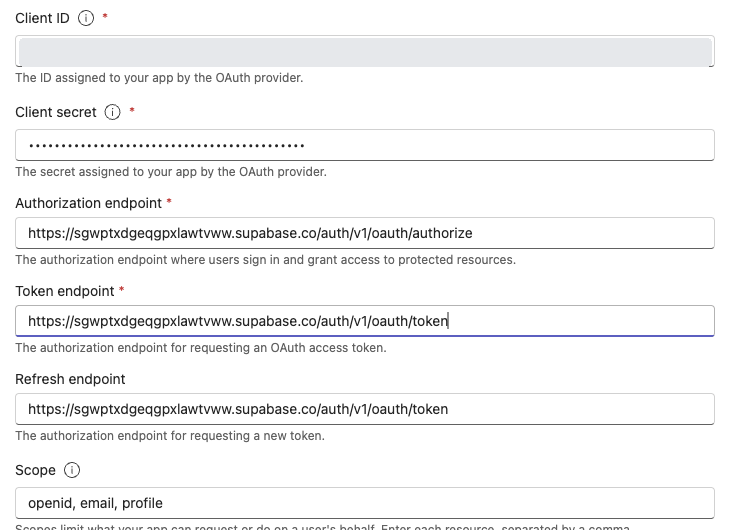
If Save stays grey, look at Restrict usage by Teams app. Its default, Existing Teams app, wants the ID of a Teams app, and a connector isn't one. Choose Any Teams app and Save works. The portal then shows an OAuth client registration ID. Copy it for the admin center.
From the admin center to Copilot's first answer
In the Microsoft 365 admin center, open Copilot, then Connectors. On the Gallery tab, find Create a new connector and select Add. The Custom connector page offers two types, and the difference is where your data ends up.
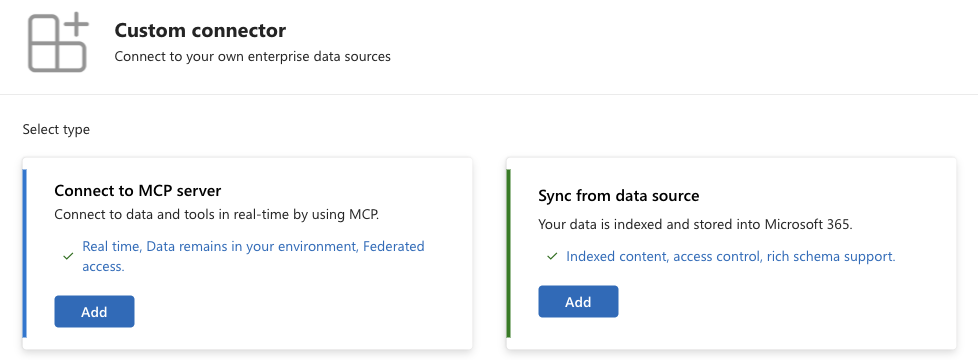
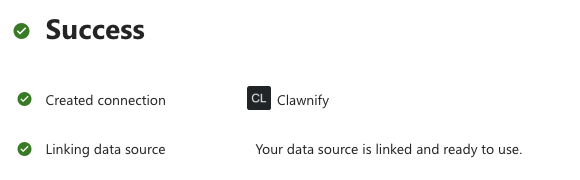
Choose Connect to MCP server. The form asks for a display name, a description and the server's MCP endpoint URL, then the developer's name, website, privacy policy and terms of use. The description's real reader is Copilot. Microsoft says a clear, specific one helps Copilot work out what the connector can do. Ours names the records the workspace holds, such as orders, customers and invoices, and the jobs it does: look up or update a record, read company knowledge, list tasks, hand a task to an agent. If your server only accepts traffic from known addresses, allow the static egress IPs Microsoft publishes for Copilot.
Under Authenticate your MCP endpoint, choose OAuth 2.0, paste the registration ID into Reference ID and press Authorize. The admin signs in to the server once, approves, and the field gets a green check. Microsoft's setup page ends this part at a Save button and doesn't mention Authorize. The form we used had Authorize, then a notice to accept and a Create button.
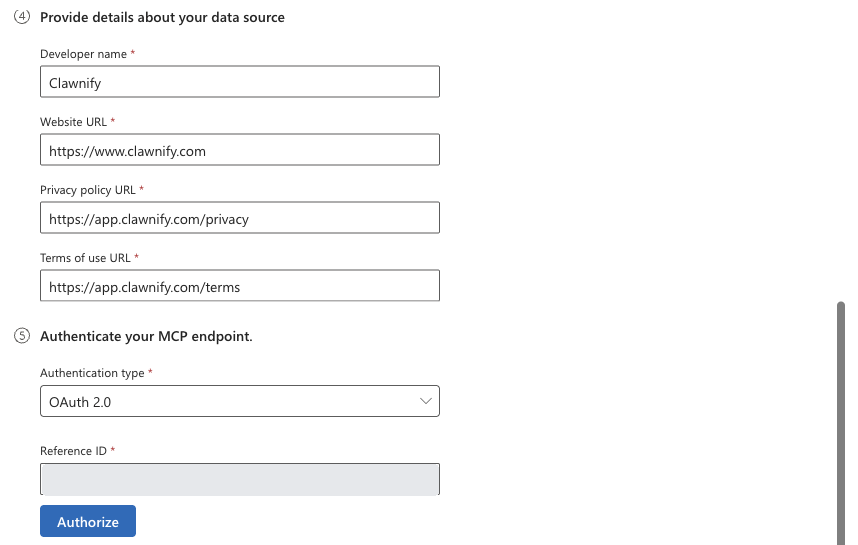
Create ends on a short confirmation that the data source is linked and ready to use.
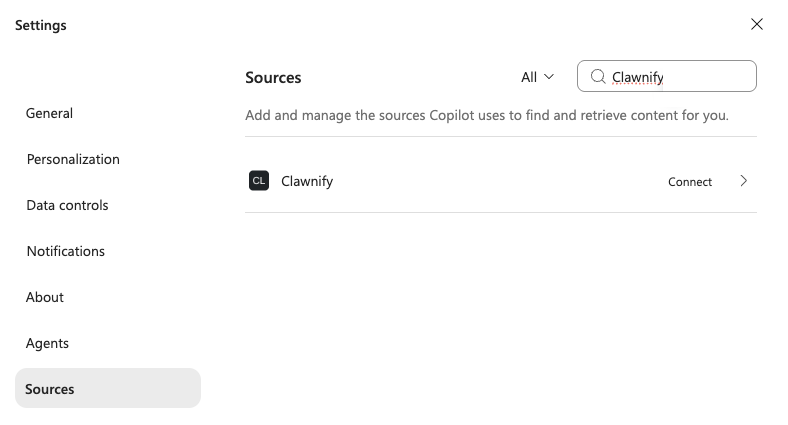
The connector reaches users within 10 minutes, Microsoft says, and only those inside both the tenant's User access setting and the connector's staged rollout. Even then it does nothing for a person until they connect it. Before we connected ours, Copilot told us no Clawnify connector was available. Each person opens Copilot Chat, selects the ellipsis (...) menu, then Settings and Sources, finds the connector and selects Connect.
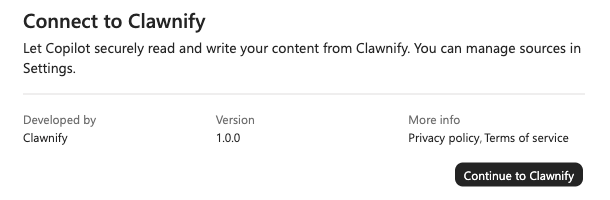
Copilot shows who built the connector and passes the person to the server's own sign-in. From then on Copilot acts as that person, and Microsoft's page is explicit that it reaches only what the person's own account may see and change.
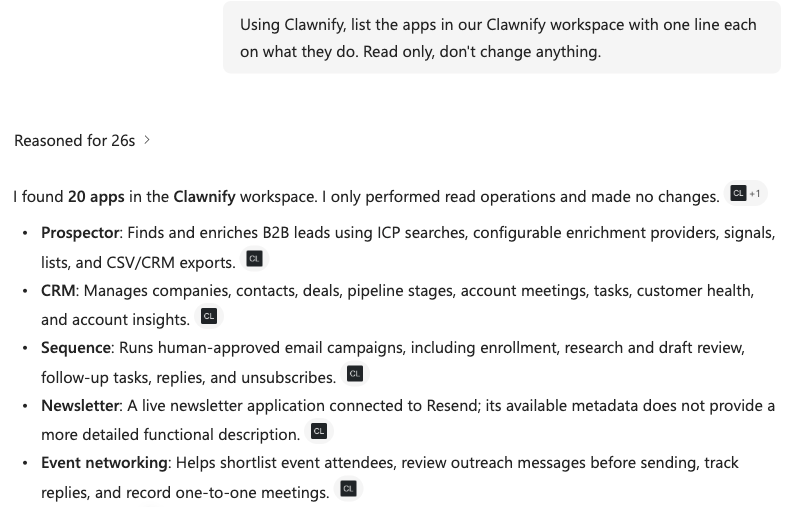
Our first question named the connector and asked it to stay read only: list the apps in our Clawnify workspace, one line each. Copilot showed Connecting to Clawnify, reasoned for 26 seconds, and listed all 20 apps, citing the connector as its source.
The form has no field for an icon, so Copilot shows the connector's initials. Ours is CL.
Your tool annotations decide what Copilot asks about
A federated connector can create, update and delete data too. Microsoft's federated connectors overview sets the rule for that. Tools that change data need the user's approval, and read tools run without asking. When Copilot wants a write tool, it shows a card with the parameters it's about to send. Nothing reaches the server until the person picks one of four answers.
- Allow once runs it now and asks again next time.
- Allow for conversation stops asking about that tool until the conversation ends.
- Always allow stops asking about that tool until the person changes the setting, or the publisher changes the tool.
- Cancel changes nothing.
The page doesn't say how Copilot tells a write tool from a read tool. Our tenant showed it. Under Settings, Sources, Clawnify, Copilot sorted our tools into two groups, and the split matched our server's own annotations exactly: the 27 tools we mark read-only are always allowed, and the other 25 need approval.
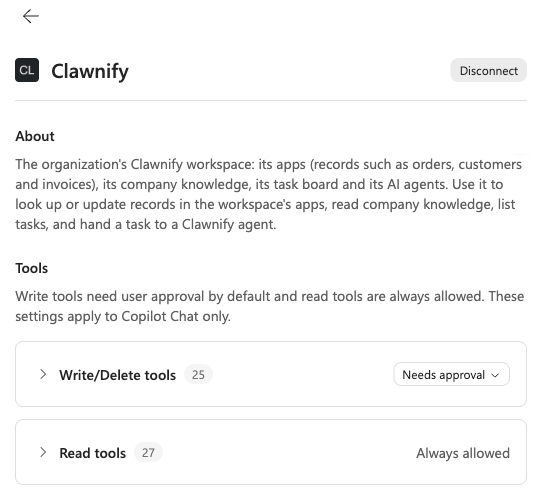
MCP calls that mark readOnlyHint, and it's only a hint: the server declares it and nothing checks it. On this evidence, a tool that deletes something but is marked read-only would run without asking. So if you run the server, the annotations are now part of its safety. The review for a ChatGPT plugin reads the same marks.
Two limits to that safety net. Copilot's own screen says the approval settings apply to Copilot Chat only, so it says nothing about how Copilot in Outlook or Word asks. And Always allow is per tool and sticks, which is reasonable for creating a task and less so for deleting an app. We suggest our users keep delete tools on Needs approval. When a publisher adds a write tool or changes one, Copilot puts it back on Needs approval by default.
The other routes in, and why we didn't use an agent
There are other ways to put your own service in front of Microsoft 365 Copilot. We ran two, and we know two more only from Microsoft's documentation.
| Route | Built by | Signs in with | What we saw |
|---|---|---|---|
| Federated connector | An admin, in a form | Entra SSO, a registered OAuth client, or nothing | Worked |
| Declarative agent with an MCP action | A developer, as an app package | Entra SSO, OAuth, or dynamic registration | Not tested |
| Copilot Studio agent with an MCP tool | A maker, in Copilot Studio | Nothing, an API key, or OAuth with discovery | Not tested |
| Custom engine agent | A developer, as a Teams app | The bot's own registration | Timed out after 45 seconds |
We tried the agent first. It puts the agent itself in Copilot, and it costs nothing in licences, since Microsoft says users don't need a Copilot licence for a custom engine agent in Copilot Chat. Ours was a bot that already worked in Teams, set up the way we describe in adding a bot to Microsoft Teams. Once its app package declared it for Copilot, it appeared under Agents straight away, and both test messages reached it. No reply came back. Copilot showed the agent's status line, gave up, and named the chat after the error: timeout error after 45000ms.
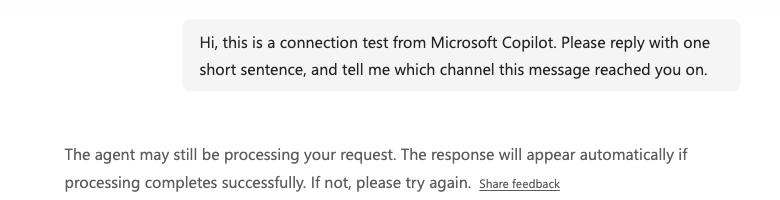
We didn't chase the cause. A quicker bot might fit a short answer into the 45 seconds Copilot waited in our test, but much of an agent's work takes minutes, and Microsoft's known issues list proactive notifications as unsupported for these agents. So the agent can't come back once the work is done. Work that takes longer has nowhere to land. The same page lists custom engine agents as unsupported in Outlook, Word, Excel and PowerPoint, all places the connector reaches.
So Copilot calls the tools, and the agents stay behind them. The tools answer in seconds. In our setup, work that needs an agent goes in as a task: a tool creates it, and the agent picks it up from the board.